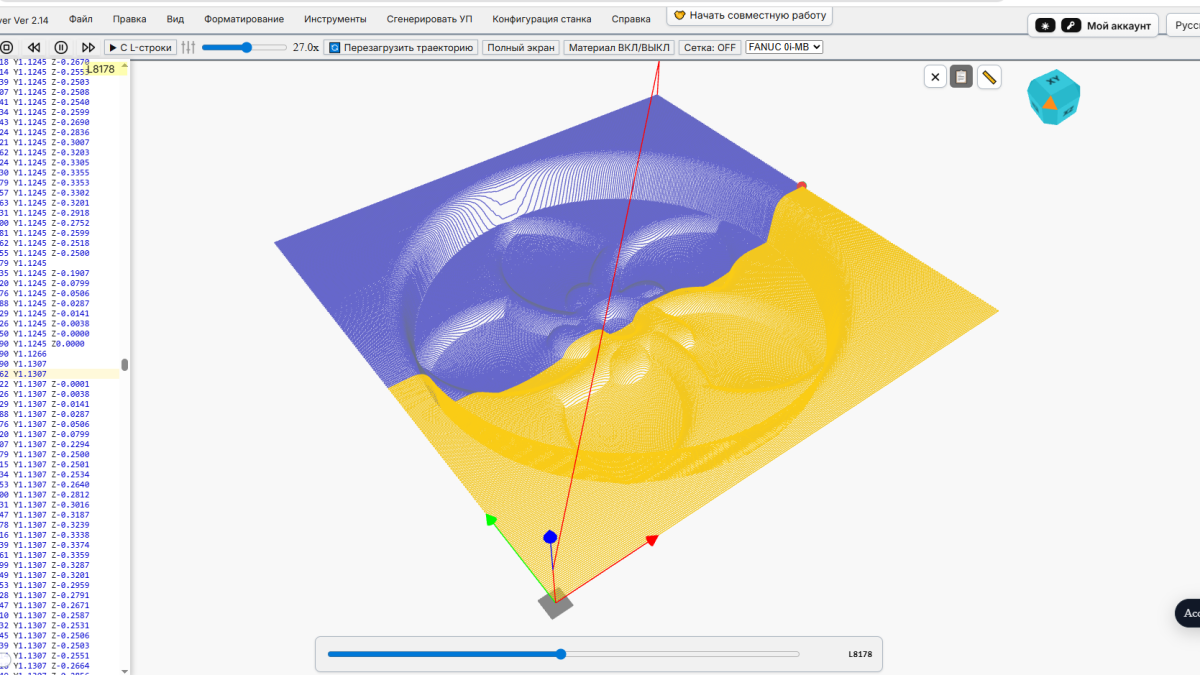
NCPlayer now has a new program viewing mode: Timeline Mode. It is useful in situations where looking at the G-code and the toolpath is not quite enough. The program may be understandable line by line, but the order of movements, transitions between rapid and cutting moves, pauses and mode changes still have to be held in the user’s head.
Timeline Mode shows a CNC program as a sequence of events over time. It does not replace toolpath simulation and it does not remove the need to check the code, but it adds another viewing angle: what happens first, what follows next, where the tool rapidly moves into a new area, and where the cutting move begins.
Why a timeline view is useful
When checking an NC program, the problem often does not appear in one isolated block. The risk may be in the transition: a rapid move after a coordinate system change, a movement after compensation, a return to the R plane, a repeated subprogram call, or a short-looking section that changes the program state.
In a normal list of lines, these places are easy to miss. An operator or programmer looks at the code, then at the toolpath, then goes back to the lines again. Timeline Mode helps connect these things: the program line, the movement and its position in the overall sequence are closer to each other.
What becomes easier to see
The timeline view is especially useful when reviewing programs with many transitions between rapid positioning and cutting moves. In real work, those sections often deserve more attention than the profile cutting itself.
- where rapid G00 movements are located;
- where cutting moves such as G01, G02 or G03 begin;
- how the program moves from one machining section to another;
- which blocks appear before or after a mode change;
- where the risk of unexpected movement may appear.
This helps not only to find an error, but also to explain the program to another person faster. Sometimes the issue is not that the code is “bad”; it is that the logic of the program is hard to read. A timeline makes that logic more visible.
Why it helps with training
For a beginner operator or programmer, G-code often looks like a set of commands where each line is explained separately. But a machine does not execute isolated definitions. It executes a sequence of actions. Timeline Mode shows exactly that side of the program.
A user can go through the program step by step and see how the tool behavior changes: rapid approach, cutting pass, retract, movement to the next section. This kind of view is closer to real machine work than simply reading a G-code reference.
Where the mode helps most
Timeline Mode is worth using during the first program check, after edits, during training, and when a user needs to understand someone else’s NC program quickly. It becomes especially noticeable in programs where the toolpath alone does not give the full answer: repeated sections, subprograms, long transitions, or mixed movement modes.
The mode does not make a program automatically safe. It simply shows program execution more clearly. The final decision still belongs to the person checking the work: the program has to be verified in simulation and checked against the specific machine, tool, stock, workholding and local safety procedures.
NCPlayer becomes more useful for real program checking
Timeline Mode adds to the familiar G-code workflow in NCPlayer. Now the program can be viewed not only as text and toolpath, but also as execution over time. For training, that makes explanation easier. For work checks, it helps users find places where they should stop and look more carefully.
A good CNC program check rarely happens in one glance. First the code is read, then the movement is viewed, then the questionable place is reviewed again. Timeline Mode adds one more layer to that process, especially where the mistake is hidden not in a single line, but in the sequence.